An attendance flow teachers finish in under a minute
Design a fast school attendance register for teachers: a mobile flow, safe defaults, reliable saves and a practical way to measure completion time.
On this page 7 sections
A teacher has a class in front of them and a phone in one hand. The software needs to answer a small question: who is here for this session? The attendance screen should make that answer easy to record and easy to correct later.
This post is a proposed design, not a report of a timed study or a description of Oxygen LMS’s production implementation. The names, class and counts in the example are fictional. The target is worth testing on a low-cost phone with the roster sizes and connection conditions a school actually has.
What should the teacher see first?#
Open the teacher’s next assigned class and show the date and session at the top. Make both changeable: a substitute may have a different class, and a school may take attendance once a day or for each lesson. Never silently save a mark against a guessed class or date.
Keep the roster on the same screen as the task. Names need to be readable without horizontal scrolling, and each row needs a labelled status. A teacher should be able to find a student, mark an absence and see the updated status without opening a profile.
Here is a fictional register after the teacher has checked the class:
| Student | Mark | What the teacher did |
|---|---|---|
| Ali | Present | Confirmed with the remaining class |
| Sara | Absent | Marked absent |
| Hamza | Late | Marked late |
The summary reads “1 present, 1 absent, 1 late”. It is a check against the visible roster, not a substitute for looking at the students. A larger class may need scrolling; keep the save action and counts easy to find without hiding rows behind a fixed footer.
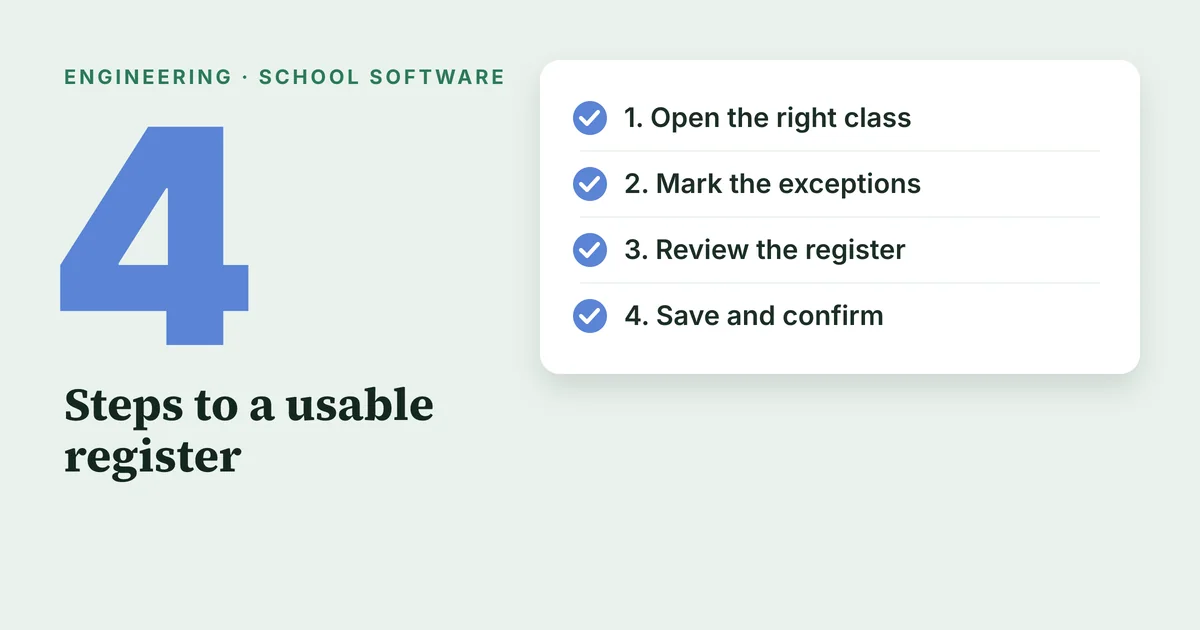
Four steps for the register#
- Open the right class. Show the class, date and session. Let the teacher correct them before marking.
- Mark the exceptions. Tap the relevant student and choose an available status such as absent or late. Use the school’s own codes and meanings.
- Review the register. Show unmarked students and a count for each status. Offer an explicit “Mark remaining present” action only after the teacher has checked them.
- Save and confirm. Show “Saving”, then “Saved” only after the server confirms. If the connection fails, preserve the work and say what happens next.
The explicit bulk action matters. Attendance Works recommends a neutral default so an unsubmitted register cannot be confused with a completed one [1]. Arbor offers “Mark All Blanks as Present” after individual marks can be entered [2]. Both ideas inform this proposal: start unmarked, then let the teacher deliberately confirm the rest.
An unmarked register is not a register with zero absences. The office needs to see “Not submitted” separately from a submitted register in which every student is present. If the teacher cannot verify someone, keep the register as an incomplete draft and follow the school’s procedure rather than guessing. Saving that draft must not turn it into a completed register.
How do you make the phone screen easy to use?#
Use full words such as “Present” and “Absent”, not colour alone. A coloured dot can help someone scan the list, but it cannot carry the meaning by itself. Show the selected status in text, give each control a visible focus indicator and make every action available by keyboard as well as touch.
For small controls, WCAG 2.2’s minimum target-size criterion is 24 by 24 CSS pixels, with defined exceptions [6]. Larger targets are easier to hit on a crowded phone screen. Test with longer names, enlarged text, a screen reader and the languages the school uses; a label that fits in English may wrap elsewhere.
Keep optional notes out of the path to saving ordinary marks. If a school needs a reason or approval, collect it in the appropriate follow-up flow and restrict who can read it. A quick register should not put a child’s private details on a classroom projector.
What should the server save?#
The screen is only the front of the workflow. The server needs to know which school, section, session and enrolment each mark belongs to. The school ERP database design attaches attendance to a dated enrolment so a student’s class history survives a later transfer.
For a daily register, the session can be a school-defined date and period. A lesson-based school may need a separate timetable session instead. Define that identity before adding a uniqueness constraint; one mark per student per day is wrong if the school records multiple lessons per day.
| Part | Proposed responsibility |
|---|---|
| Register | School, section, session, submission state and a version number |
| Mark | Enrolment, status and the register it belongs to |
| Change history | Previous and new mark, actor, time and reason where required |
| Submission key | A unique operation ID, request fingerprint and stored result for safe retries |
Enforce one register per school, section and session, and one mark per enrolment within that register. Resolve the school from the authenticated context, check that the teacher can mark that section, and verify that every enrolment belongs to the roster for that session. A client-supplied school ID or hidden button is not an access control.
A class submission can send the marks in one request. Validate the whole batch before writing it, and require a valid mark for every enrolled student before setting the register to submitted. Incomplete work remains a draft. Save the marks, register state, change history and operation result in one database transaction. Return a clear error if validation fails; partial success would make the count on the phone hard to trust.
Make retries safe without hiding conflicts#
A timeout does not prove that the server failed. It may have committed the register while the response was lost. Give each submission an operation ID and retry the same payload with the same ID. The server should atomically reserve that ID, record a fingerprint of the request and return the recorded result for an identical retry. Reject reuse of the ID with different data. Stripe documents this pattern for its own API; an attendance service must implement its own equivalent [5].
A retry is different from a new edit. For a correction, use a new operation ID and include the version the teacher last saw. If another authorised person has changed the register since then, reject the stale edit and show the current marks for review. Do not silently overwrite the other person’s work. Store the original and corrected marks with the actor and time, subject to the school’s retention and audit requirements.
What happens when the internet drops?#
There are two honest ways to ship the first version. An online-only app can keep an unsent draft on the screen and ask the teacher to retry. It must warn that closing the page or losing the session may lose that work. It should not say “Saved” until the server confirms.
An offline-capable app needs more work. Cache the app and an authorised roster while online, store a pending submission on the device, and show “Saved on this device, waiting to sync”. After reconnecting, retry with the same operation ID and show “Saved to school” only after the server accepts it. If the roster changed, access was revoked or the version conflicts, keep the pending work visible for a person to resolve.
Do not promise that a closed browser will always sync automatically. The Background Synchronization API is unavailable in some widely used browsers [3]. Retry when the app opens or reconnects, and provide a visible retry action. Browser storage can also be cleared or evicted, so a local queue is not a permanent backup [4]. Handle storage failures and make the risk clear before a teacher leaves an unsynchronised register.
Protect student data on shared devices#
Show teachers only the classes they are authorised to take. Avoid putting names or absence reasons in analytics, error logs or operation IDs. A school can decide how long to keep registers and what details staff need for follow-up; those decisions depend on its obligations and location.
If an offline roster is stored on a phone, scope it to the signed-in user and school. Plan for shared phones, logout, revoked access, device loss and the removal of local data. Clearing local data must not silently discard unsynchronised marks: warn the user and provide a safe path to resolve or explicitly discard them.
The UK Information Commissioner’s Office found weak data minimisation and retention practices in its audits of edtech providers [7]. That is UK guidance, not a statement of Pakistani law, but the design question applies anywhere: what information does this screen need, and who needs to see it?
How do you verify the one-minute target?#
Time the task from opening the attendance screen to a confirmed save, not merely the taps on the roster. Include loading time and corrections. If the app supports offline submission, record device-save time and eventual server confirmation separately.
Run a small usability test with teachers on the phones and connection conditions they use. Give each person the same fictional roster and a set of known absences and late arrivals. Ask them to work without coaching. Record class size, device, connection, prior experience, completion time and whether the saved register matches the answer key. Repeat with an all-present class and with a late correction.
| Measure | What to record |
|---|---|
| Completion | Time from opening the screen to confirmed save; report the distribution, not only the fastest result |
| Accuracy | Wrong marks, missed students and corrections needed after save |
| Reliability | Failed saves, pending submissions, retries and conflicts |
| Usability | Where teachers hesitate, mis-tap or need help |
Compare the current and proposed flows with the same scenarios. Report the number of participants and attempts alongside the results. A median under 60 seconds is useful, but it does not mean every teacher finishes under a minute. Accuracy and a confirmed save still matter when the timer stops.
For the broader product principle behind this screen, see designing for the least technical user in the room. The next useful step is a prototype and a timed session with teachers, followed by a revision based on what they actually do.
Questions readers ask
How can an attendance app be faster for teachers?
Open the correct class and session quickly, show a readable roster, let teachers mark exceptions and review the register before saving. Test the full task with teachers rather than assuming the number of taps predicts completion time.
Should an attendance app automatically mark everyone present?
An automatic present default can make an unfinished register look complete. A safer design starts unmarked and offers an explicit bulk action after the teacher has checked the class, subject to school policy.
Can teachers take attendance without internet?
Only if the app has been designed and tested for it. A previously loaded roster and queued changes can be stored on the device, but they are not confirmed by the server until synchronisation succeeds.
References
- Attendance Works. High Quality Attendance Data Is More Important than Ever, 2017.
- Arbor Education. How can a teacher take attendance?, 2025.
- MDN Web Docs. Background Synchronization API, 2024.
- MDN Web Docs. Storage quotas and eviction criteria, 2026.
- Stripe. Idempotent requests, 2026.
- World Wide Web Consortium. What's New in WCAG 2.2, 2023.
- Information Commissioner's Office. ICO statement on Edtech examined report, 2026.